
このアプリについて About This App
SelfCurationは、自分だけのニュース・情報フィードを自由に組み立てるためのiOSアプリです。RSSフィードとPodcastを一元管理し、ジャンルやキーワードで絞り込みながら、自分にとって本当に必要な情報だけを効率よく収集することを目的として設計されています。
SelfCuration is an iOS app for building your own fully customizable news and information feed. It provides unified management of RSS feeds and podcasts, letting you filter by genre and keywords to efficiently gather only the information that truly matters to you.
このアプリは、広告代理店でのメディア編集・取材業務を17年以上経験した制作者が、自身の情報収集の非効率さを解消するために開発しました。既存のニュースアプリが抱える「アルゴリズムによる偏り」「広告過多」「使いたい情報源を自由に選べない」という課題を解決することを意図しています。
This app was developed by a creator with over 17 years of experience in media editing and interviewing at an advertising agency, driven by a desire to fix the inefficiencies in their own information gathering. It is designed to solve the core problems of existing news apps: algorithmic bias, excessive advertising, and the inability to freely choose your own information sources.
本アプリはAIアシスタント「Claude(Anthropic)」との対話を通じて開発されました。iOSアプリ開発の経験を持たない制作者が、Claudeと協力しながらSwiftUI(iOS)で構築した、AIと人間の協働による開発事例のひとつです。
This app was developed through conversations with the AI assistant "Claude" (Anthropic). It is an example of human-AI collaboration — built in SwiftUI (iOS) by a creator with no prior iOS development experience, working together with Claude.
エコーチェンバーからの脱出ツールとして Escaping the Echo Chamber
現在のSNSやニュースアプリの多くは、ユーザーの興味・関心に基づいたアルゴリズムによって情報を選別します。これにより、似た意見や価値観の情報ばかりが表示される「エコーチェンバー」と呼ばれる現象が起きやすくなります。
Most social media platforms and news apps today filter information through algorithms based on your interests. This makes it easy for the "echo chamber" effect to occur — where you're only shown information that reflects opinions and values similar to your own.
SelfCurationでは、情報源・ジャンル・キーワードをすべてユーザー自身が設定します。アルゴリズムによる自動選別は行いません。自分が意図的に選んだ多様な情報源から、自分の視野を広げるための情報収集ができます。
In SelfCuration, you configure all information sources, genres, and keywords yourself. There is no algorithmic auto-filtering. You can gather information from a diverse range of sources that you've intentionally chosen, broadening your perspective on your own terms.
他のアプリとの比較 Comparison with Other Apps
| 機能 Feature | SelfCuration | Feedly | Inoreader | Apple News | SmartNews |
|---|---|---|---|---|---|
| 広告なしNo Ads | ✓ | 有料のみPaid only | 有料のみPaid only | — | — |
| RSS自由登録Free RSS registration | ✓ | ✓ | ✓ | — | — |
| Podcast対応Podcast support | ✓ | — | — | — | — |
| キーワードフィルターKeyword filter | ✓ | 有料のみPaid only | ✓ | — | — |
| アルゴリズム非依存Algorithm-free | ✓ | 一部Partial | 一部Partial | — | — |
| 設定の共有・配布Share / export settings | ✓ | — | — | — | — |
| 無料で全機能利用Full features free | ✓ | — | — | 広告ありWith ads | 広告ありWith ads |
基本的な使い方 Basic Usage
「設定」→「登録サイト」→ 右上の「+」をタップします。
Go to "Settings" → "Registered Sites" → tap the "+" button in the top right.
登録画面には、各ジャンルごとに認知度の高いサイトやPodcastをあらかじめリストアップしています。ニュース・テック・ビジネス・英語・サイエンスなど幅広いジャンルから、気になるものをワンタップで登録できます。
The registration screen features a curated list of well-known sites and podcasts organized by genre. From news, tech, and business to English learning and science — you can register anything that interests you with a single tap.
リストの中に見たいサイトがない場合は、「サイトを検索」でキーワード検索することで、世界中のRSSフィードから自分好みのサイトを探せます。また、RSS URLを直接入力して登録することもできます。Podcastも同じ手順で登録できます。
If a site you want isn't in the list, you can search for it by keyword to find RSS feeds from around the world, or directly enter an RSS URL. Podcasts can be registered the same way.
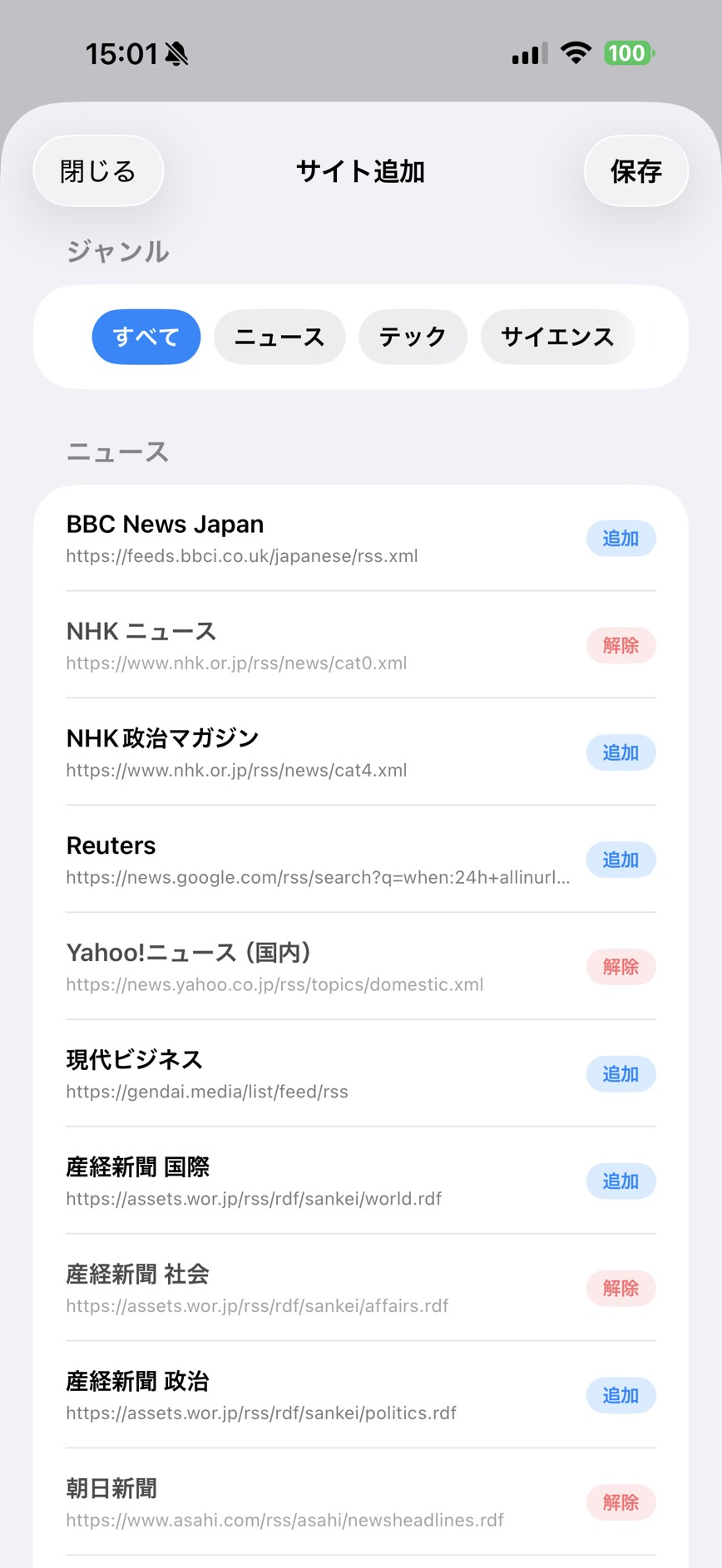
「設定」→「ジャンル管理」から、ジャンルの追加・削除・並び替えができます。フィード画面上部のタブでジャンルを切り替えて表示を絞り込めます。ジャンルを削除すると、そのジャンルのサイトは「未分類」に移動します。
Go to "Settings" → "Genre Management" to add, delete, or reorder genres. Switch between genres using the tabs at the top of the feed screen. Deleting a genre moves its sites to "Uncategorized."
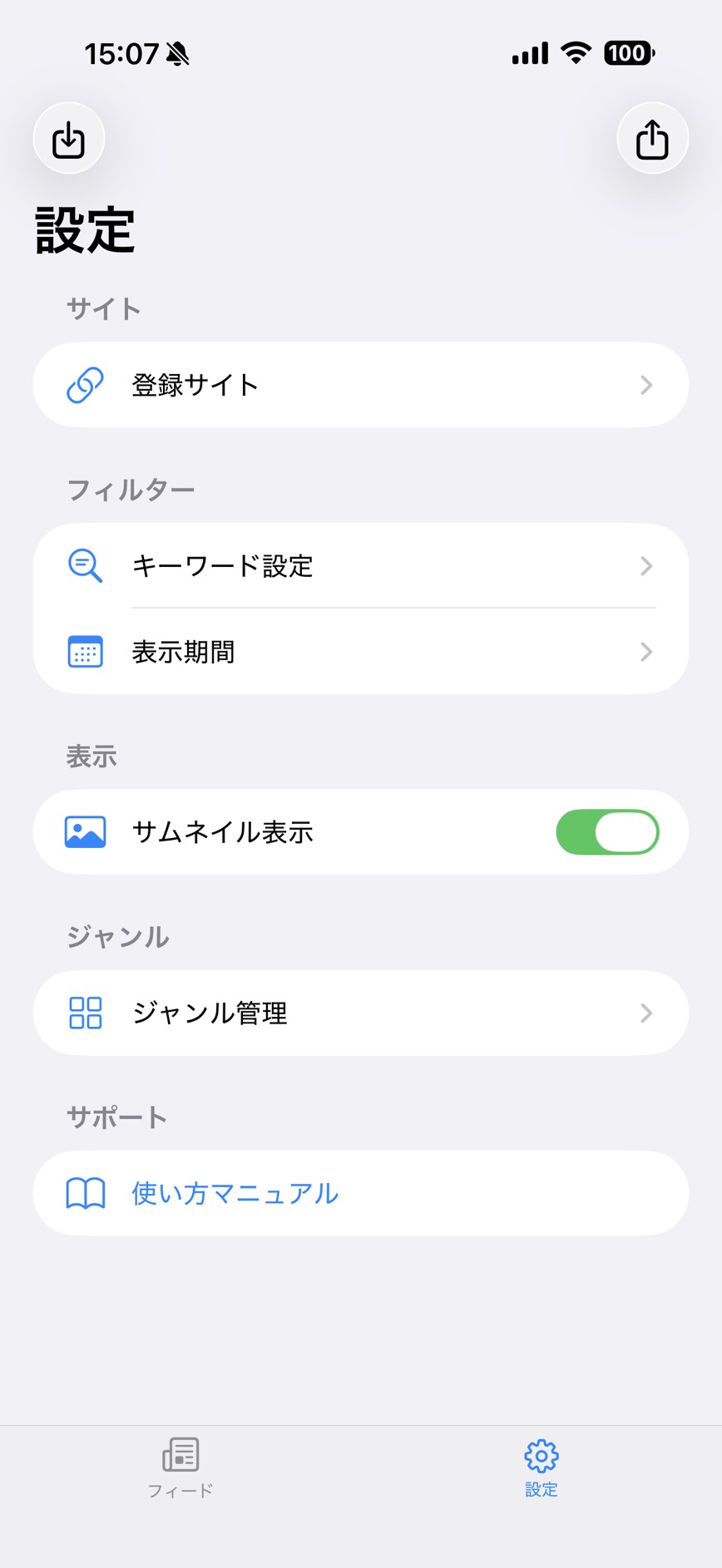
「設定」→「キーワード設定」から、表示したいキーワード(含む記事のみ表示)とNGキーワード(含む記事を非表示)を設定できます。複数のキーワードを設定した場合、表示キーワードはOR条件で機能します。
Go to "Settings" → "Keyword Settings" to set keywords to include (only show articles containing these) and keywords to exclude (hide articles containing these). When multiple include keywords are set, they work as OR conditions.
「設定」→「表示期間」から、フィードに表示する記事の期間を設定します。24時間・3日間・1週間・2週間・すべてから選択できます。ブックマークした記事は期間設定に関わらず常に表示されます。
Go to "Settings" → "Display Period" to set how far back articles appear in your feed. Choose from 24 hours, 3 days, 1 week, 2 weeks, or All. Bookmarked articles are always shown regardless of this setting.
フィード画面の記事カードをタップすると、元のサイトがブラウザで開きます。カード右下のブックマークアイコンで記事を保存できます。英語記事には翻訳ボタンが表示され、日本語に翻訳して読むことができます。
Tap an article card in the feed to open the original site in a browser. Tap the bookmark icon at the bottom right of a card to save it. English articles display a translate button so you can read them in Japanese.
ブックマーク一覧画面では、右上の共有ボタンからブックマークをまとめてテキスト出力できます。出力したテキストをメールやメッセージでPCに送って内容を確認したり、SNSで気になった記事を一度に共有したりするのに活用できます。
On the bookmark list screen, tap the share button in the top right to export all bookmarks as text. Use this to send articles to your PC via email, or share multiple interesting articles at once on social media.
設定画面の右上(エクスポート)・左上(インポート)のボタンから、登録サイトとジャンルの設定をファイルとして書き出し・読み込みできます。機種変更時のデータ移行や、他のユーザーへの設定の配布に活用できます。インポート時は「追加」(現在の設定に上乗せ)または「上書き」(現在の設定を置き換え)を選択します。
Use the export button (top right) and import button (top left) in Settings to save or load your registered sites and genre settings as a file. This is useful for transferring data when changing devices or sharing your setup with others. When importing, choose "Add" (merge with current settings) or "Overwrite" (replace current settings).
フィード画面の操作 Feed Screen Operations
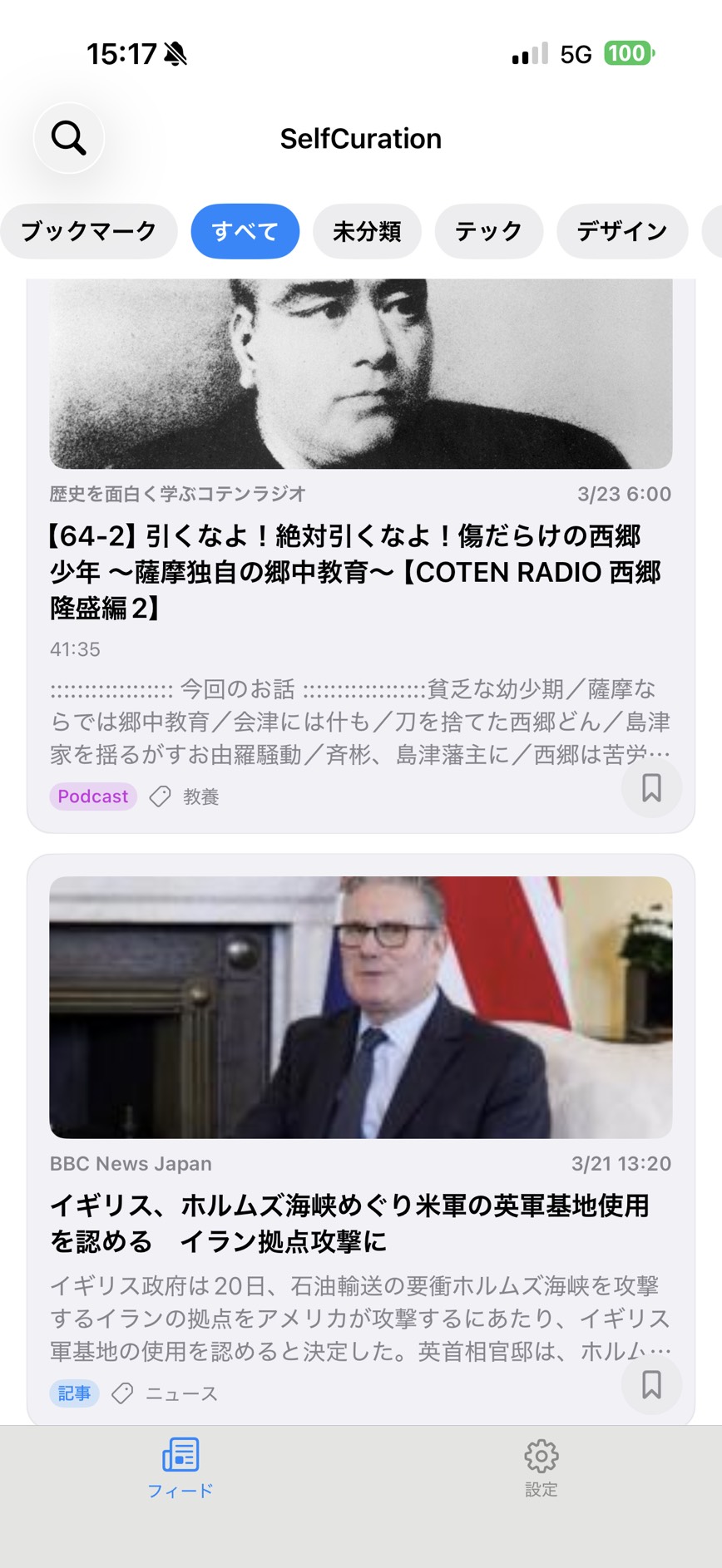
画面上部のジャンルタブで表示を切り替えます。「すべて」は全ジャンルの記事を新着順に表示します。「ブックマーク」ではブックマークした記事のみ表示します。
Use the genre tabs at the top to switch views. "All" shows articles from every genre in chronological order. "Bookmarks" shows only your saved articles.
左上の検索ボタン(虫眼鏡)でフィード内のキーワード検索ができます。下にスワイプするか、画面下部の「フィード」ボタンをタップすると最新の記事を取得します。
Tap the search button (magnifying glass) in the top left to search within your feed by keyword. Swipe down or tap the "Feed" button at the bottom of the screen to refresh and fetch the latest articles.
通知機能・既読機能について Notifications and Read Status
本アプリには、プッシュ通知機能および既読管理機能を意図的に実装していません。
SelfCuration intentionally does not include push notifications or read-status management.
プッシュ通知は、情報を「受け取らされる」体験につながります。SelfCurationは、ユーザーが自分のペースで能動的に情報を取りに行くことを大切にしているため、割り込みの発生する通知機能は設けていません。
Push notifications lead to an experience of being "pushed" information. SelfCuration values the user's ability to actively seek out information at their own pace, so no interrupting notification feature is provided.
既読管理についても同様に、「すべての記事を消化しなければならない」という義務感をもたらしやすい機能です。気になった記事だけを読み、必要なものはブックマークで保存するというシンプルな使い方を推奨しています。
Read-status tracking similarly tends to create a sense of obligation to "read everything." We encourage a simpler approach: read only what interests you, and save what you need with bookmarks.
注意事項 Notes
本アプリはRSSフィードを取得する際に外部サーバーと通信します。登録したサイトのRSS配信が停止・変更された場合、記事が表示されなくなることがあります。その場合はURLの再確認または再登録をお試しください。
This app communicates with external servers to fetch RSS feeds. If a registered site stops or changes its RSS feed, articles may no longer appear. If this happens, please verify or re-register the feed URL.
登録サイト数が増えると、フィードの読み込みに時間がかかる場合があります。
As the number of registered sites increases, feed loading may take longer.
PodcastのエピソードはRSSフィードから取得します。一部のPodcastはApple Podcastsのエピソード直リンクに対応しており、タップするとApple Podcastsアプリで該当エピソードが開きます。
Podcast episodes are fetched via RSS feed. Some podcasts support direct links to Apple Podcasts episodes — tapping these will open the episode directly in the Apple Podcasts app.
YouTubeチャンネルを登録する場合は、RSS URL欄にYouTube RSS形式のURLを直接入力する必要があります。URLは https://www.youtube.com/feeds/videos.xml?channel_id=【チャンネルID】 の形式です。チャンネルIDはYouTubeのチャンネルページの概要欄から確認できます。
To register a YouTube channel, enter the YouTube RSS URL directly in the RSS URL field. The format is: https://www.youtube.com/feeds/videos.xml?channel_id=[Channel ID]. You can find the channel ID in the "About" section of a YouTube channel page.